AI Prompt for Technology Infographic: Net-Print Copier Instructions Diagram
This AI prompt generates a modern infographic illustration explaining how to use a net-print copier. Updating product instructions and guides can enhance customer experience and brand engagement. For creators aiming to produce informative and engaging graphics, this prompt can be a useful solution.
Related Keywords
Main AI Prompt
Main Prompt Content
"Goal: Create a friendly Japanese step-by-step instruction sheet for printing two reserved net-print documents at a 7-Eleven multifunction copier, designed so an elderly parent can understand it just by looking.
Canvas: Square 1:1 infographic, white background with teal borders and rounded cards, bold teal section headers, red emphasis text, simple flat vector icons. Overall style is clean, high-contrast, large readable Japanese typography, like a laminated how-to guide.
Main header: At the top, a dark teal banner with a circular 7-Eleven storefront icon on the left and a printer icon on the right. Center the large white headline {argument name="headline text" default="セブンで印刷する手順"}. Under it place a pale yellow rounded pill subtitle {argument name="subtitle text" default="この画像を見ながら操作すればOK!"}.
Section 1, top left card, title {argument name="section one title" default="① まず覚えること"}: Include exactly 4 teal bullet points and 1 yellow warning box. The bullets say, in Japanese, that there are 2 things to print, enter reservation numbers one at a time, the size is A4 black-and-white one copy each, and the expiration deadline is 2026/05/16 23:59. Emphasize the numbers 2, 1, A4, black-and-white, one copy each, and the date in red. The warning box contains a teal exclamation icon and text warning that printing becomes unavailable after the expiration date, so print early.
Section 2, top right card, title {argument name="section two title" default="② 予約番号"}: Show exactly 2 large reservation-number rows with teal circled numbers: row 1 is {argument name="first reservation number" default="ABCD1234"}, row 2 is {argument name="second reservation number" default="EFGH5678"}. Each row is inside a white rounded rectangle with teal outline. Add a red note below: print these two in order.
Section 3, middle full-width card, title in Japanese meaning store workflow: Show exactly 6 numbered vertical steps separated by thin teal lines, each with a teal circle number at the top. Step 1: go to 7-Eleven, with storefront icon. Step 2: on the multifunction copier screen choose “Net Print,” with copier touchscreen icon and pointing hand. Step 3: enter the reservation number, with keypad screen showing ABCD1234 and a pointing hand pressing confirm. Step 4: confirm A4 black-and-white and print, with settings panel and printer output icon. Step 5: after the first one finishes, enter the second reservation number the same way, with circular repeat arrows and text indicating print 1 then 2 in order. Step 6: insert money and receive the printout, with banknote, coins, downward arrow, paper sheet, and sparkle icons.
Section 4, lower card, title in Japanese meaning print contents: Show exactly 2 contents items. Item 1: teal circled 1, large text “A4 black-and-white 1 copy,” small paper icon. Item 2: teal circled 2, large text “A4 black-and-white 1 copy,” small paper icon. Separate the two items with a dotted teal divider.
Bottom help strip: Pale yellow rounded rectangle with two friendly elderly people icons on the left, faces intentionally blurred or simplified. Add a teal headline saying that if they are confused, they only need to look at these two numbers. Show exactly 2 large bordered boxes containing ABCD1234 and EFGH5678.
Constraints: Use exactly 4 major numbered sections plus the bottom help strip, exactly 2 reservation numbers, exactly 6 workflow steps, exactly 2 print-content items, exactly 4 bullet points in Section 1, and no extra logos except the simplified 7-Eleven storefront motif. Keep all Japanese text large, readable, and neatly aligned."
You might also like
Hand-picked related prompts from Infographic Diagram.
Infographic Diagram
By Jared Liu
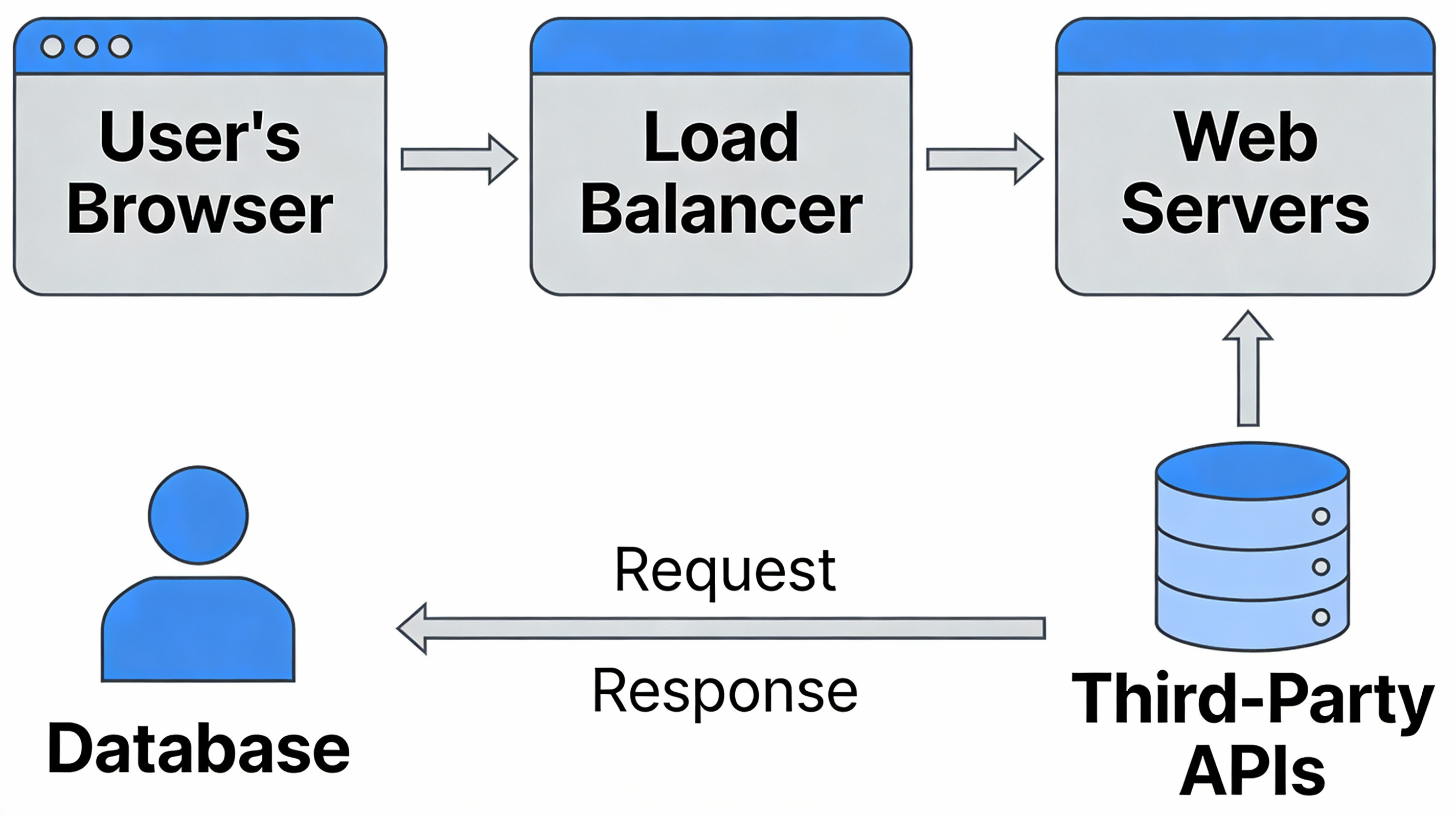
AI Prompt for Web App Architecture Diagrams with Icons and Data Flow
Illustration
design
Infographic
"A high-level system architecture diagram for a modern web application, for a presentation to stakeholders. The diagram s..."
Infographic Diagram
By ベトテク太郎🇻🇳ベトナム経済&株式ニュース
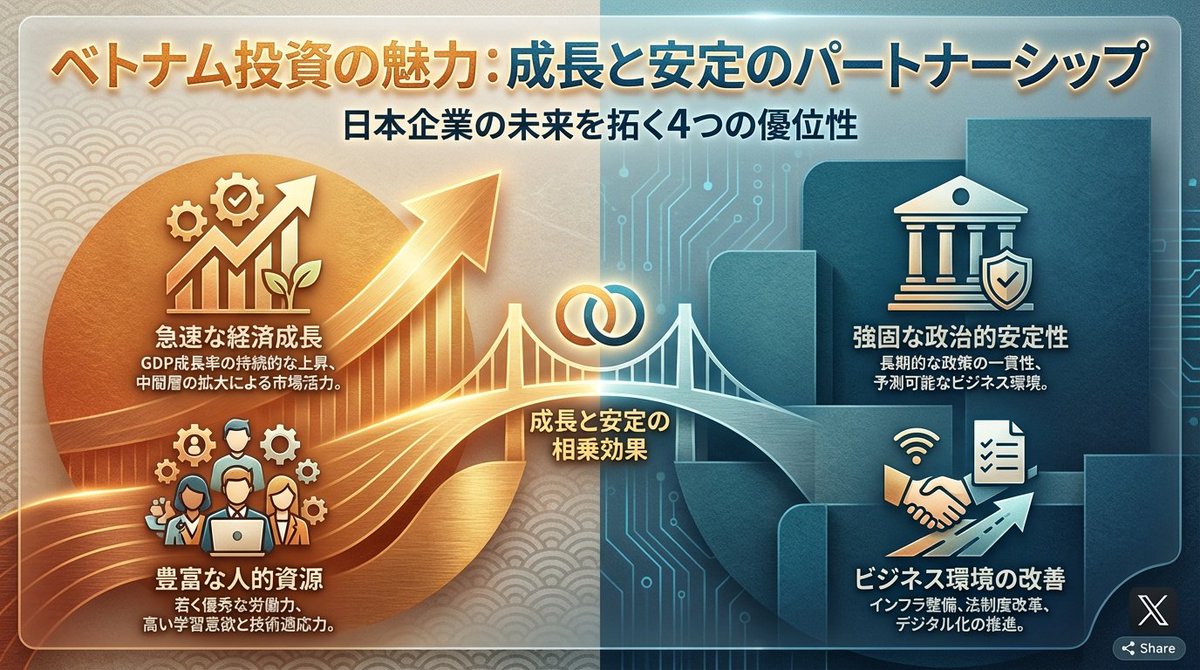
AI Prompt for Creating Informative Vietnam Investment Slides
Infographic
graphic-design
diagram
ベトナム投資の優位性を1枚のスライドにして
Premium
AI Prompt for Architectural Construction...
Infographic Diagram
By Huan
AI Prompt for Architectural Construction Workflow Diagrams
Infographic
diagram
architecture
Chart
"请生成一张「{argument name="建筑名称" default="故宫太和殿"}」的单体建筑完整模型图。画面只展示该建筑主体及其近距离基础环..."
Latest Discoveries
Explore our most recently added high-quality AI prompts.
Landscape/Nature
By かい@デザイナー,Shopifyパートナー
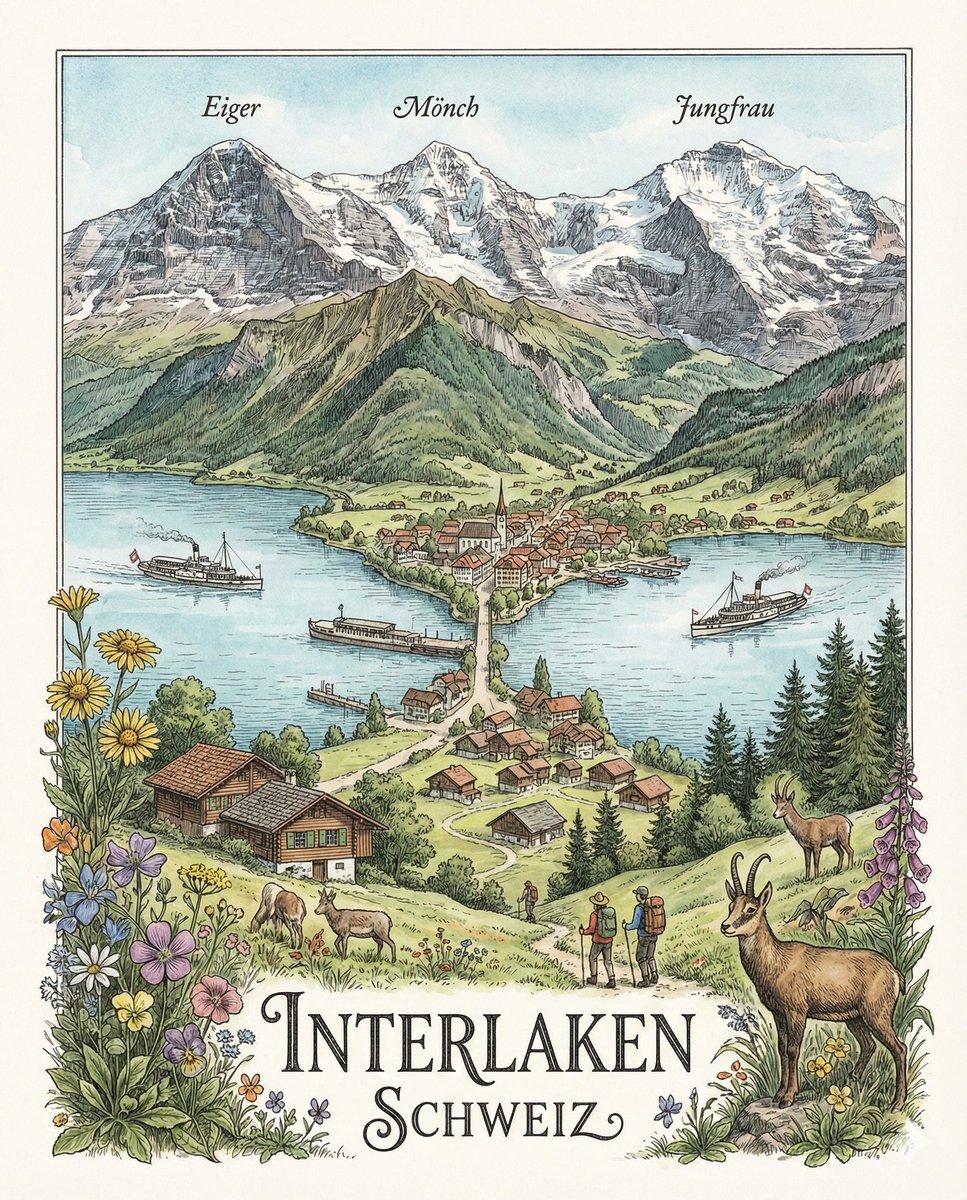
AI Prompt for Highly Detailed Geographically Accurate Swiss Landscape Illustration
Illustration
nature
landscape
"「{argument name="場所と風景" default="スイスインターラーケンの美しい湖と周辺の風景"}を、精密イラストで描いて。縦横比は{..."

Tennis Lifestyle
By gauche
AI Prompt for Social Media Tennis Lifestyle Photo
fashion
photography
product-marketing
social media
{
"prompt": "Tennis lifestyle photo, young woman with long {argument name="hair color" default="platinum white blonde"...
Premium
Tech Infographic
By 小墨同学
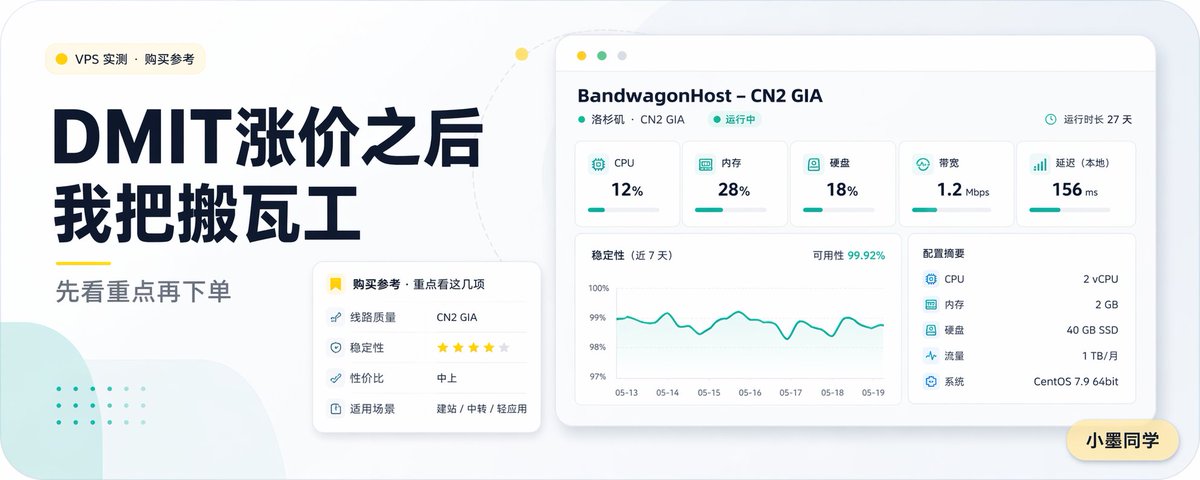
AI Prompt for Creating Visually Attractive Chinese VPS Comparison Covers
AI-Prompt
Infographic
graphic-design
VPS Comparison
Chinese Tech
"Create a clean modern Chinese tech blog cover in a wide 16:9 layout with a soft light-gray background, rounded-corner ca..."